2016年6月8日星期三

妙用excel做字符串的拼接处理

今日做前端开发,很费力的要把将近两千行的数据item预载入在线表格中,需要特定的数据格式,形如,

data = [
  [1, "string", ***],
  [2, "string", ***],
  ....
]

当前已有的是item_num和item_name目录。刚开始的思路是将其全部复制进txt文本,形如
如下格式,然后用python做字符串的拼接处理。

item_num, item_name
item_num, item_name
....

发现小问题了,每一行后的\n都需要split消除;若想得到List的形式,又会引入新的“”;拼接为单一的一个string不是很友好...果断舍弃,扔一边儿去接着看js各种轮子。

这时,手头的excel灵光乍现!!

1.首先将item_num和item_name分别复制进excel中,得到两列。
2.插入列,填补内容
3.同一行若干个单元格合并,小小的公式“=A2&B2&C2&D2&E2”


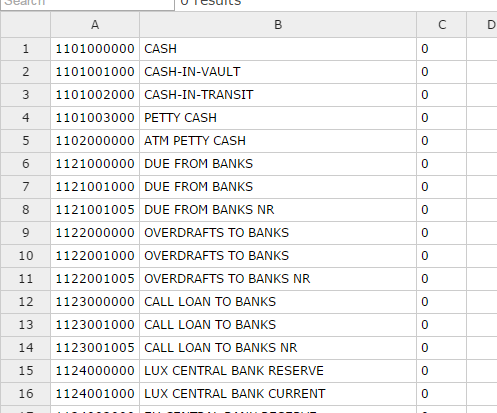
合并之后,如图


末列的单元格就是我想要的数据子格式啦。全部复制进[]中,我的data预载入数据就有了,


最终web端在线表格有了预载入的数据,如图,


再次为我的帅气和机智叹服。

2016年6月3日星期五

Outlook full problem

A couldn't find her old mail which has been archived and moved by B.

So I help her to export the history Outlook data, file -> Open&Export -> Open Outlook Data File -> locate and select target data file, then it's ok.

************Outlook full problem***********************

users always meet problem that outlook is full because user's space is only 1G, so AutoArchive is necessary.

To solve this problem, I find an idea,

1. new local data file at Account Settings, which named local_backup, of course, we could also new subfolder named inbox/Drafts/@/#$#
2. archive
   - AutoArchive, for inbox or sent items, we have choices at AutoArchive to delete old mails according to the time and AutoArchive them to local data file
   - Manual, whenever our mailbox is full we could select them to move into local_backup and then delete them
3. in local_backup folder, we could find what we need. One more important, search All Outlook items or All Mailboxes is very helpful.

2016年5月30日星期一

windows下为python安装*.whl

给我一个Terminal,我可以创造一个世界。

给我一台windows,我只能活在盖茨的世界里。

环境win7 64bit,python2.7,怎么安装.whl的拓展包呢?什么环境变量,pip的都不用管了,只需要cmd下一句话,

python -m pip install ***********.whl


就可以啦

2016年5月9日星期一

python遍历文件夹小结

下面来小结一下Python遍历文件夹的几种方法。

方法1:使用os.listdir
import os
for filename in os.listdir('c:\windows'):
    print filename

本结果直接输出当前根目录下的所有名字,即文件夹名和文件名,并没有进入子文件夹,同时并不包括文件路径,格式如下,

dsdkljsalkdjsalk.txt
ndskdkewjdkj.doc
folder1
folder2

- 对于想输出特定目录下的文件名/文件夹名,可以再加入条件判断,

os.path.isfile(root+filename)
os.path.isdir(root+filename)

这样加以筛选就可以只输出当前路径下所有文件名,或者当前路径下所有文件夹名。

- 如果你想按照特定顺序排列,如modified或者created time,需对当前排序。

假定当前的所有文件名都存在在某list1内,形如,

    for filename in os.listdir(folder):
        if(os.path.isfile(folder+filename)):
            list1.append(os.path.join(folder, filename))

    sorted_list1 =  sorted(matches, key=os.path.getmtime)

只需在sorted里加入key即可,这里的key是os.path.getmtime,文件的更改时间,
os.path.getatime是最近访问时间,os.path.getctime是创建时间。

*注意,这里的list1中os.path.join()方法用于组建新的路径名,我们除了filename,还加入了这些文件的当前路径。这里的folder路径不能去掉,否则笨蛋的程序凭借光杆文件名不会定位到我们的文件位置。

- 问题又来了,我们得到的经过排序的sorted_list1里还包含了路径名,这样大煞风景,怎么办呢?  用split!

    for name in sorted_matches:
        name_complet.append(name.split("/")[-1])

这里巧妙地割出-1个“/”的字符串,即左起第一个“/”前的字段,就是我们的完整文件名啦。

 
方法2:使用glob模块,可以设置文件过滤

import glob
for filename in glob.glob('c:\windows\*.exe'):
    print filename

本方法很方便筛选特定格式的文件。
 

方法3:通过os.path.walk递归遍历,可以访问子文件夹

import os.path
def processDirectory ( args, dirname, filenames ):
    print 'Directory',dirname
    for filename in filenames:
        print ' File',filename
 
os.path.walk('c:\windows', processDirectory, None )

这是使用最多的方法,可以递归进入子文件夹,从而实现某目录所有文件遍历的效果。
 
方法4:非递归

#!/bin/python
#
#site:www.jbxue.com
import os
for dirpath, dirnames, filenames in os.walk('c:\\winnt'):
    print 'Directory', dirpath
    for filename in filenames:
        print ' File', filename